Cloud Archive
Backup copies in storage you already own — files, import, Remove from iPhone, and the honest limits of provider storage.
Cloud Archive
A cloud archive is a complete backup copy of a recording in storage you already own — iCloud Drive, OneDrive, Google Drive, Dropbox, or any other app that appears in the Files app. If anything ever happens to your phone, your audio still exists outside it.
Version 1 only uses the Files app and its storage providers. There is no direct login inside RecordLog, and the app never records straight to the cloud.
Getting your cloud storage to show up
RecordLog can only offer folders the iPhone itself exposes, so the setup happens in the system first, in this order.
iCloud Drive
- Settings → your name → iCloud → make sure Drive is ON. (This is separate from the Files toggle — if it was off, turning it on starts a first sync that can take a few minutes on Wi-Fi. A picker that seems to be "loading" is usually this.)
- Files app → Browse tab → More (···) button at the top → Edit → switch iCloud Drive ON → Done.
OneDrive, Google Drive, Dropbox
- Install the provider's own iPhone app and sign in inside that app.
- Files app → Browse tab → More (···) button at the top → Edit → switch the provider ON → Done. It now sits under Locations next to iCloud Drive.
- Any other storage app works the same way: if its iPhone app exposes a Files location, RecordLog can archive to it. If it doesn't, use iCloud Drive.
Picking the folder in RecordLog
- RecordLog → Settings → Archive Destination → Choose Folder….
- If the picker opens showing only local folders, you are one level too deep: tap Browse (or the back button) to get up to the Locations list first — the cloud providers live there, not inside On My iPhone.
If a provider still won't appear
- Force-quit the Files app (swipe up) and reopen it — newly enabled locations often need this before other apps' pickers see them.
- In Files → More → Edit, toggle the provider OFF, Done, then back ON.
- Open any file inside the provider from the Files app once — this wakes up its extension.
- Restart the iPhone.
- As a last resort, delete and reinstall the provider's app, then sign in again. (OneDrive in particular is known to vanish from other apps' pickers until reinstalled — that is a Microsoft-side flake, not your setup.)
- iCloud Drive always appears once enabled, so it is the reliable fallback.
- Google Drive caveat (verified Oct 2026): Drive lets you browse and create folders from RecordLog's picker, but its Files extension does not fully support folder selection by other apps — tapping Open inside a Drive folder may do nothing. That decision is made by Google's extension, not RecordLog, and there is nothing to fix on our side. Archive to iCloud Drive instead.
Library folders live on your iPhone only
Folders in the Library (and Move to Folder in the multi-select menu) organize clips on this phone. They are not network folders, and moving a clip into one never sends it anywhere. Anything leaving the phone happens only through the two paths below.
Getting clips into the cloud, step by step
1. The manual path — Share → Save to Files (works for any clip, any time).
- Library → Edit → select one or more recordings → Share Selected.
- In the system share sheet tap Save to Files, navigate to your iCloud (or provider) folder, and tap Save at the top.
- There is no confirmation inside RecordLog — the save is handled by iOS from that point. Open the Files app and look in the folder to confirm it arrived.
2. The automatic path — new recordings back up themselves once a destination is set.
- RecordLog → Settings → Archive Destination → Choose Folder… and pick your cloud folder.
- From then on, each finished recording is queued as a self-contained backup about half a minute after you stop. If the network drops, it resumes.
- Clips made before you set the destination are not backfilled on their own — send those with the manual Share path above. (Tip: record a fresh 10-second test clip after setting the folder and watch the
.recordlogfile appear. That proves the whole pipeline.)
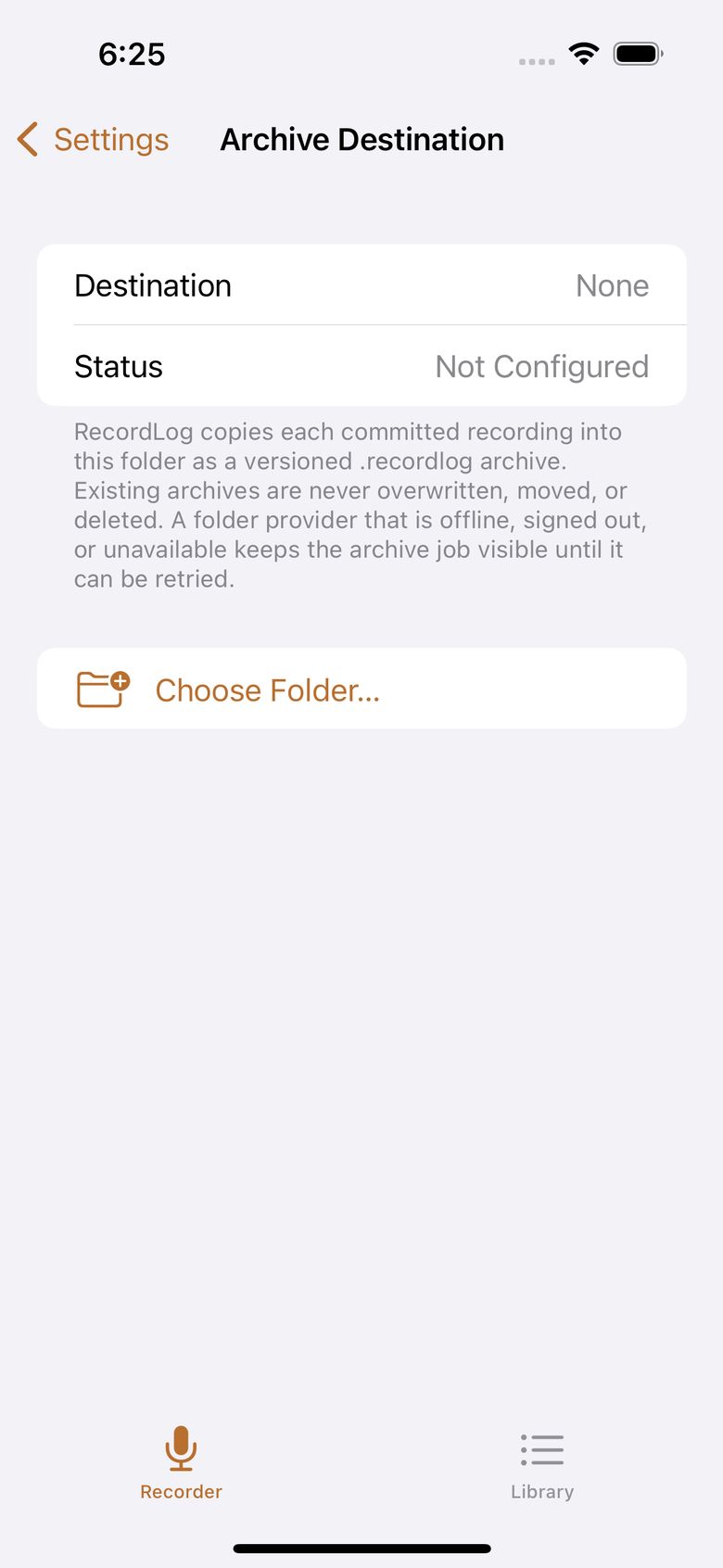
- Automatic copies: each finished recording — and each later change worth keeping — is queued as a self-contained backup with a revision number in its file name. If the network drops, it resumes.
- Backups are never touched afterward: once a backup copy succeeds, RecordLog treats it as permanent. It never overwrites, moves, or deletes it — not when you delete the phone copy, not when you delete the app.
- Import: bring RecordLog backups back from Files, one at a time or in a batch. Exact duplicates are skipped. If a backup has the same ID but different content, the app asks you to confirm Import as New (giving it a fresh identity). Your existing recordings are never overwritten.
- Remove from iPhone: once the backup can be opened and checked, you can delete just the large phone audio and keep a small cloud-only entry, with Restore later. The confirmation says honestly that RecordLog can't prove your storage provider's own servers synced.
- Honest limit: your storage provider controls logins, uptime, and syncing. RecordLog can't promise anything about their servers through the generic Files connection. Version 1 backups include error-checking codes (checksums) but are not separately encrypted by RecordLog — your provider's own encryption still applies.