Getting Started
Your first recording — record, pause, stop; microphone permission and responsibility; background and lock-screen recording; interruptions; and the transport lock.
Getting Started
Every launch opens on the Recorder — no menu maze between you and the red button.
Starting, pausing, and stopping
There are three controls: Record starts, Pause/Resume pauses and continues the same recording, and Stop finishes and saves it to your Library.
Tap Record on the main screen. The app briefly shows Preparing, then switches to Recording with elapsed time and a level meter. It only says Recording once audio is actually being saved — a failed start never leaves an empty entry in your Library.
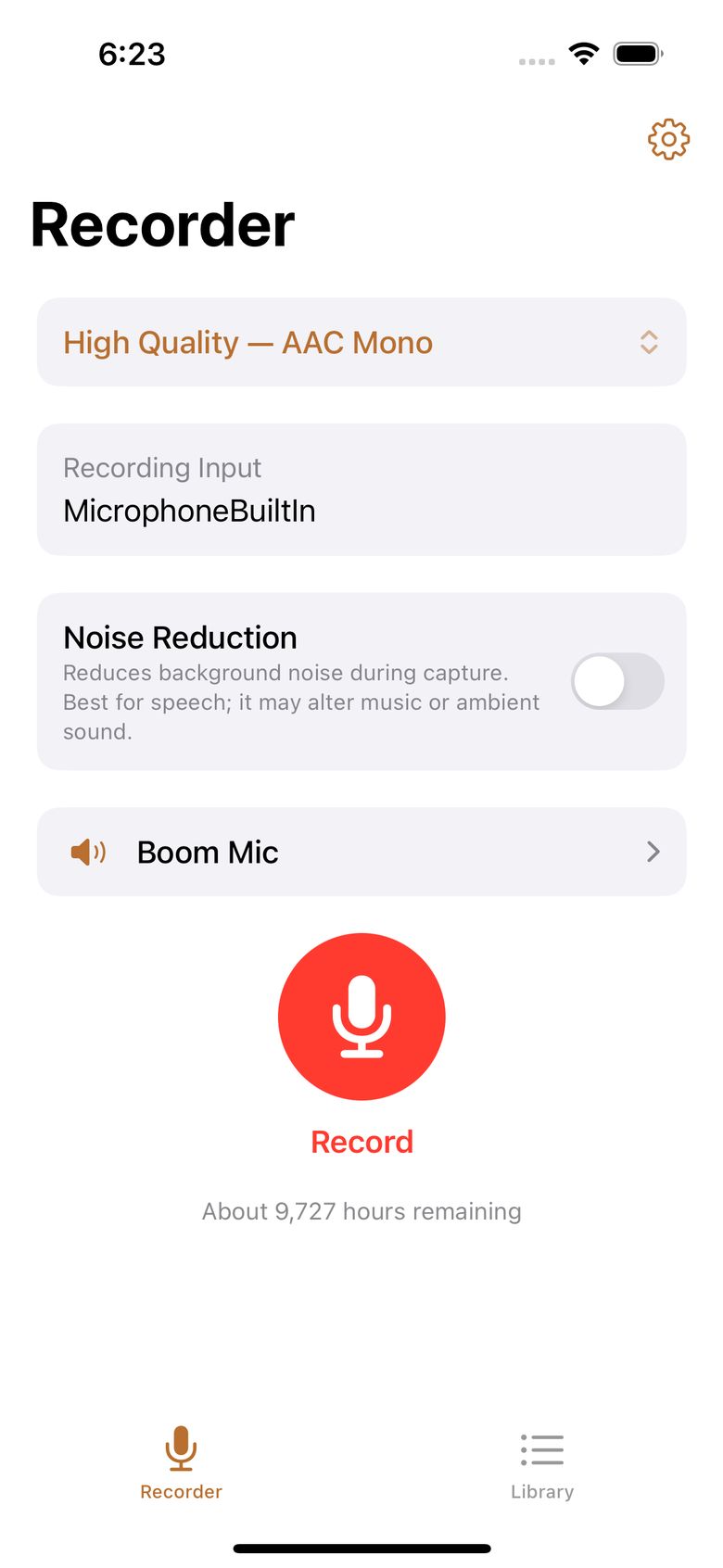
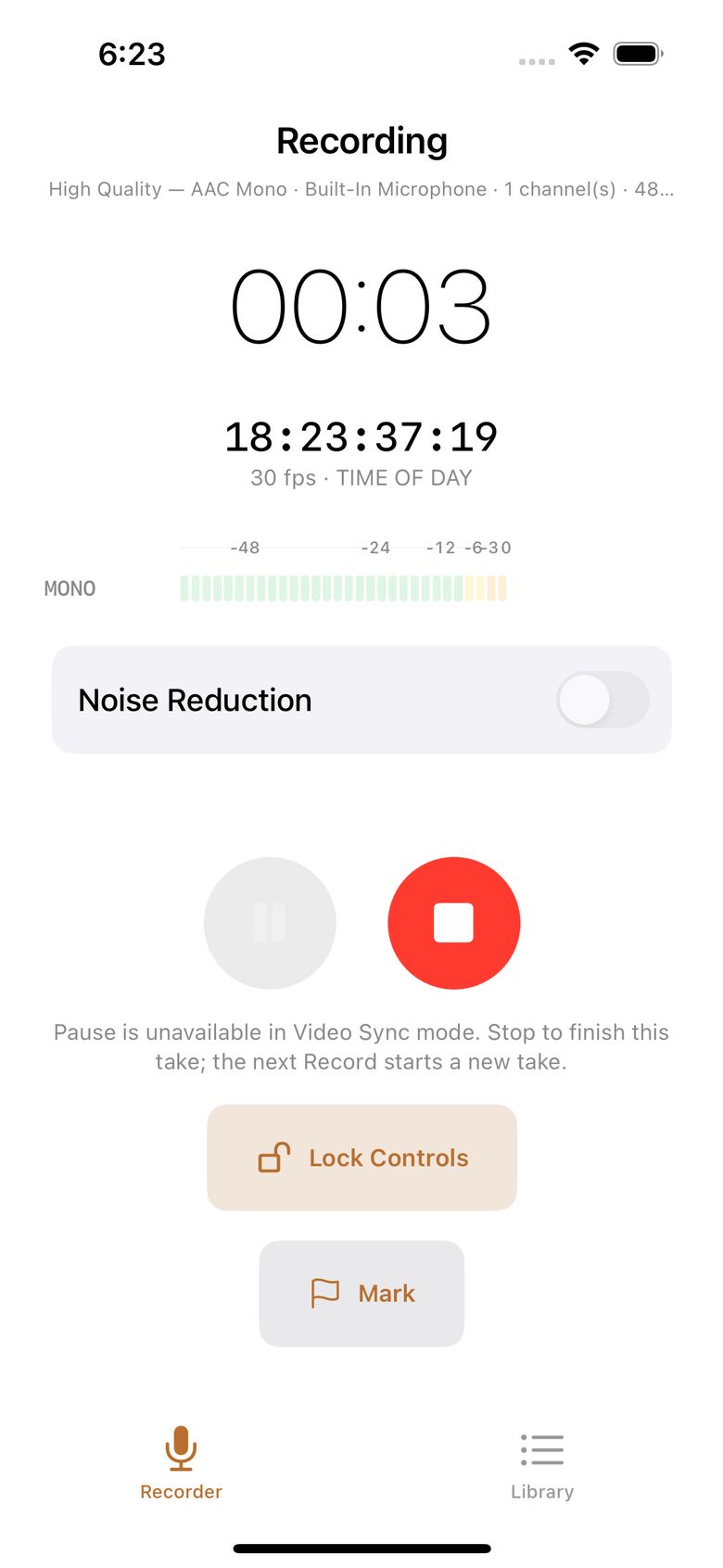
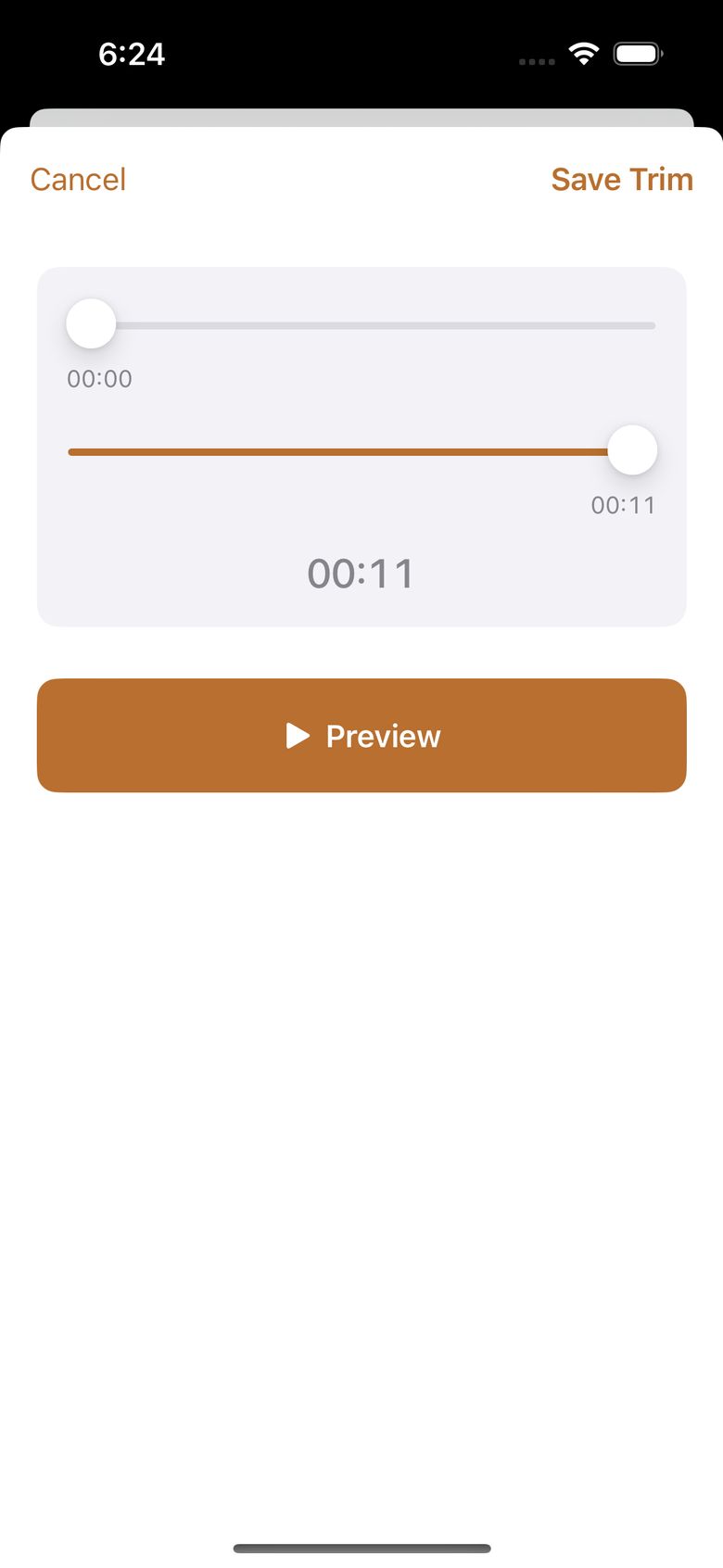
Pause and resume are always available. Stop finishes the recording. If Ask to Trim After Recording is on (the default), you get a choice of Trim Now or Not Now.
Microphone permission and your responsibility
The first time you tap Record, the app asks for microphone access. It never asks at launch out of nowhere.
On first launch, the app also shows a short note about recording responsibility: laws about recording other people, and rules about recording in certain places, are different everywhere. RecordLog can't tell you what applies to you, so it asks you to confirm you understand it is your job to record responsibly. If you decline, recording stays blocked, but help and privacy information still work.
Background, lock screen, and interruptions
Recording keeps going when the screen locks or you switch to another app. The app uses settings that keep the microphone open and keep unfinished audio safe while the phone is locked.
If a phone call, Siri, or an unplugged microphone interrupts you, RecordLog saves everything captured so far. To keep going, tap Continue Recording. This starts a new linked entry called Part 2 (then Part 3, and so on) instead of silently gluing audio together — so you can always see where the break happened.
Transport lock
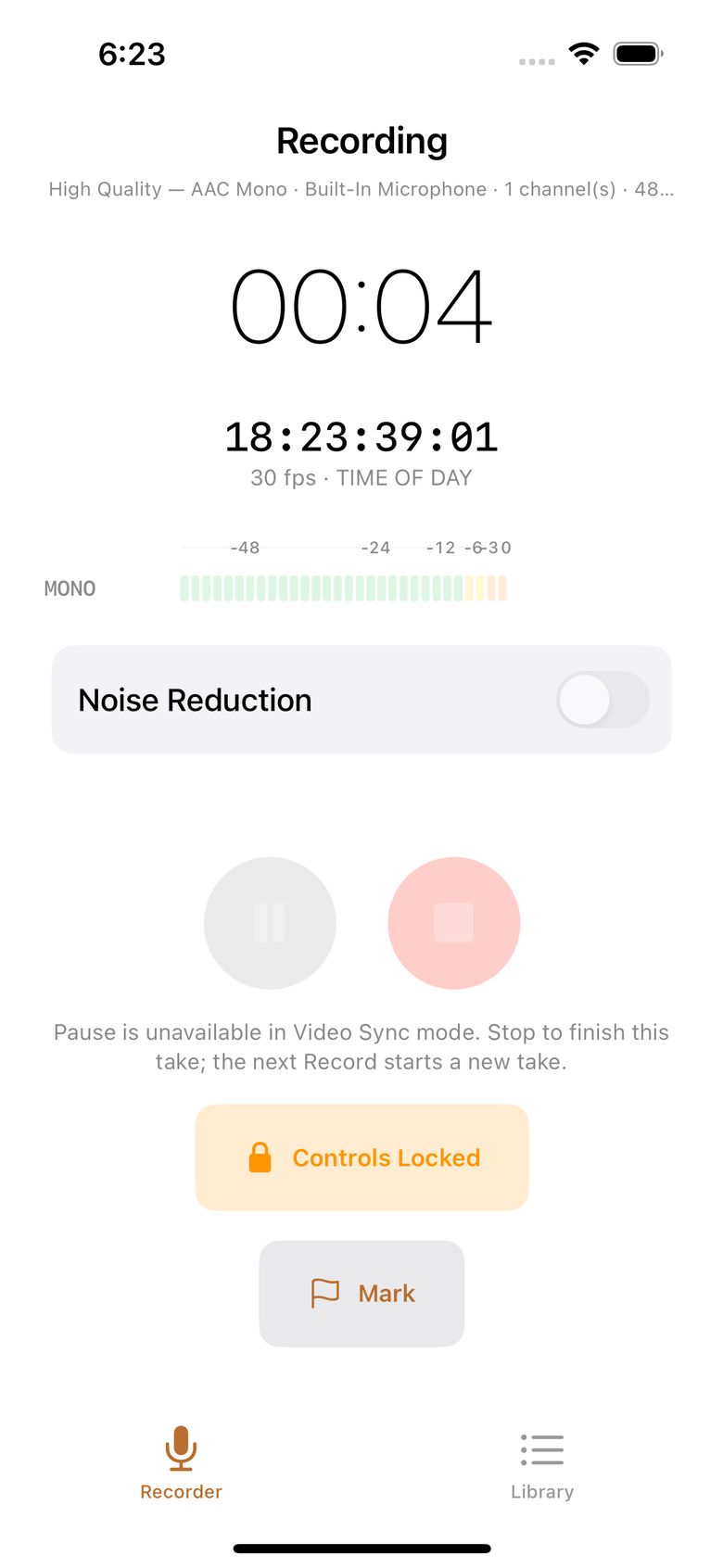
During a recording, you can lock the controls so Pause and Stop stop responding — useful for a long lecture in a pocket or bag. To unlock, tap the locked control and confirm in the pop-up (the safe choice, Cancel, is pre-selected). The lock only hides the buttons. It never changes your audio, and it resets for every recording.
Recording presets and formats
A recording preset (also called a profile) decides what kind of file you get: how the sound is compressed, what type of file it is, and whether it has one channel (mono) or two (stereo). Instead of technical sliders, RecordLog gives you nine named presets and tells you how much space each one needs.
The full guide — including which preset to pick — is on the Formats & Codecs page. The short version:
| Preset | Format | File type | Channels | Size per hour | Good for |
|---|---|---|---|---|---|
| High Quality — AAC Mono (default) | AAC | M4A | 1 | 58 MB | Lectures, meetings, voice notes |
| High Quality — AAC Stereo | AAC | M4A | 2 | 115 MB | Stereo interview or podcast |
| Lossless — ALAC (Mono) | ALAC | M4A | 1 | ~345 MB | Keeping a perfect copy, Apple devices |
| Lossless — ALAC (Stereo) | ALAC | M4A | 2 | ~690 MB | Stereo keepsake, Apple devices |
| Lossless — FLAC (Mono) | FLAC | .flac |
1 | ~345 MB | Keeping a perfect copy, any device |
| Lossless — FLAC (Stereo) | FLAC | .flac |
2 | ~690 MB | Stereo keepsake, any device |
| Uncompressed — PCM (Mono) | PCM | CAF | 1 | 518 MB | Editing in audio software |
| Uncompressed — PCM (Stereo) | PCM | CAF | 2 | 1040 MB | Editing in audio software |
| Production — PCM (CAF Stereo) | PCM | CAF | 2 | 1040 MB | Video work with timecode |
All presets record at 48 kHz (a broadcast-standard quality level — good enough for video editing with no conversion needed).
Stereo presets only appear when your connected microphone actually provides two channels. The built-in iPhone mic always provides one, so stereo needs an external stereo mic or receiver. If a setup can't support your choice, the app disables it and explains why instead of failing halfway through.
Dual Mono records two separate mics into one two-channel file — for example, one lapel mic on you and one on your guest — without mixing them. Later you can split out each side as its own file. Full steps: Dual Mono Mics.
Noise Reduction cleans up background noise while you record spoken voice on a mono (single-channel) setup. When it can and can't be used is explained on the Noise Reduction page.
Video Sync timecode shows a running video-style clock (SMPTE timecode) while you record, in six standard speeds (23.976, 24, 25, 29.97 NDF, 29.97 DF, 30 frames per second), plus markers you can drop. A small data file (JSON) travels with the recording so an editor can line it up with video. Because the clock must stay truthful, Pause is turned off in Video Sync mode.
Two honest limits: a "lossless" preset preserves exactly what your mic heard — it can't add detail a cheap mic missed. And if a WAV export would be bigger than the old WAV format allows (4 GB), the app says no and suggests the original file instead. Turning a compressed recording into WAV never improves its sound.