← All apps‹ All documentation
Export
Send recordings anywhere through the iPhone share sheet — the original file, WAV copies, separate mic files, production metadata, CSV catalogs, and transcripts.
Export
Exporting copies a recording — or several at once — out of RecordLog into files you can save, message, email, or open in other apps. It uses the normal iPhone share sheet, so anywhere the iPhone can send a file, your recording can go. Exporting never changes the recording inside RecordLog.
- Share Recording / Share Selected — the everyday choice: the current original file, exactly as recorded, straight to the share sheet (Mail, Save to Files, AirDrop, Messages, and so on).
- Why both end in the same place: whichever you tap, the last step is always the same iPhone share sheet. The only difference is what arrives there — Share sends the original immediately, Export As… lets you pick a format first (below) and then hands that file to the identical sheet.
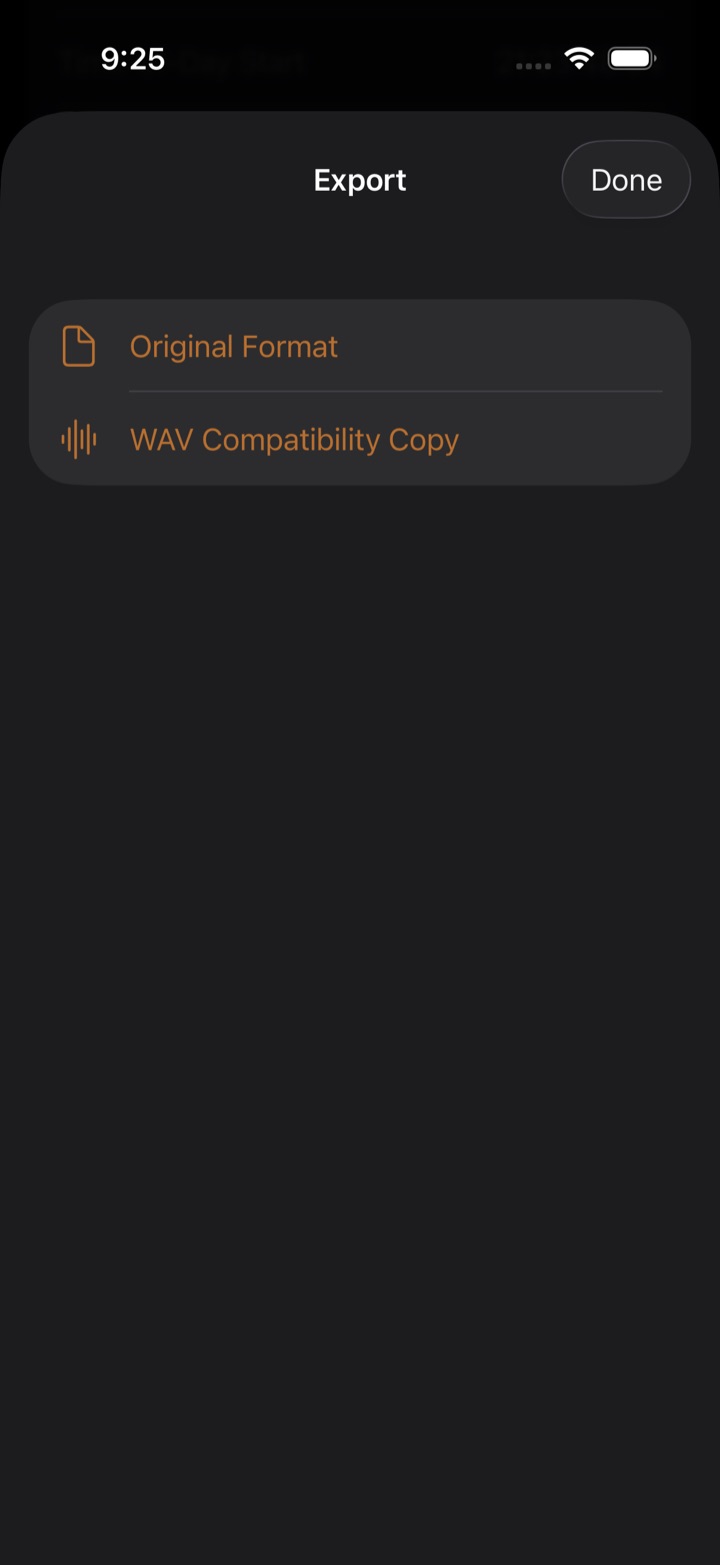
- Export As… — special versions, each explained below. Pick one, and it is handed to the same share sheet.
- Original Format — the recording's own file, with no conversion. This is the same file Share sends; choose it here when you entered through Export As… out of habit.
- WAV Compatibility Copy — a 16-bit WAV version of the recording. WAV is the lingua franca of audio software: nearly every editor, transcription service, and archive system accepts it. Pick this when the receiving program can't open RecordLog's recorded format (AAC/ALAC/CAF). Two honest notes: converting does not improve sound — an AAC recording turned into WAV sounds exactly the same, just bigger — and classic WAV files cannot exceed 4 GB, so very long recordings are refused with guidance to use the original instead.
- Separate Tracks — for two-microphone recordings only (Dual Mono). You get one mono 24-bit WAV per mic — CH 1 and CH 2 — each containing only its own microphone, kept in exact sample-level sync, never mixed together and never volume-adjusted to match each other. Use this when each mic needs its own treatment in an editor: isolate one speaker, mute a noisy mic, or process channels independently. Like WAV, each track is subject to the 4 GB ceiling, checked before anything is written; a cancelled export leaves no half-files behind.
- Broadcast WAV (timecode) — a 24-bit WAV with the take's start timecode written inside the file itself. Timecode is a running clock address (hours:minutes:seconds:frames) that video and audio editors use to line recordings up with picture automatically: import the file and the editor places it at the right spot on the timeline instead of you dragging it by hand. Each recording carries the frame rate it was recorded with (default 30 fps; changeable in Settings → Video Sync). Same 4 GB size guard as the compatibility copy.
- Production Metadata (JSON) — a small companion data file for editors: timing, timecode rate, take name, markers you dropped, and which mic was which. Pair it with the Broadcast WAV when handing a take to an editor.
- CSV Catalog — when you select several recordings: a spreadsheet-friendly list with stable IDs.
- Transcript file — TXT (plain text) or SRT (text with timestamps for captions) from the transcript screen.
- There is no MP3 export and no built-in PDF maker in version 1. For a PDF of a transcript, share the text and pick the iPhone's own Make PDF option.
The app checks the output type before it starts, and a cancelled export never leaves behind a half-file pretending to be complete.